Stack: Windows Server 2022 (Server Core) · Hyper-V · Active Directory Domain Services
Overview
To get hands-on experience with enterprise identity infrastructure, I built a self-contained Active Directory lab using Hyper-V as the virtualization platform. The environment runs Windows Server 2022 Server Core, promoted to host a new AD forest (lab.local). Rather than relying on the graphical Server Manager / Group Policy Management Console, I administered everything through PowerShell — the same approach used to manage production Server Core deployments in real enterprise environments.
This write-up covers three pieces of that build: organizing identities with security groups, structuring the directory with Organizational Units, and enforcing policy at scale with a Group Policy Object.
1. Creating a Security Group
Active Directory manages permissions and access primarily through group membership rather than assigning rights to individual users one at a time. To practice this, I created a global security group called LabAdmins globally within the LabUsers OU:

New-ADGroup -Name "LabAdmins" -GroupScope Global -GroupCategory Security -Path "OU=LabUsers,DC=lab,DC=local"
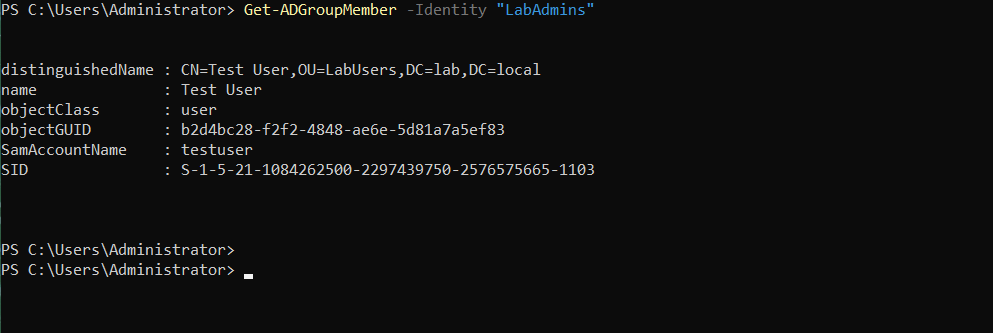
I then added a test account to the group and confirmed membership:

Add-ADGroupMember -Identity "LabAdmins" -Members testuserGet-ADGroupMember -Identity "LabAdmins"
[Screenshot: PowerShell output confirming testuser as a member of LabAdmins]
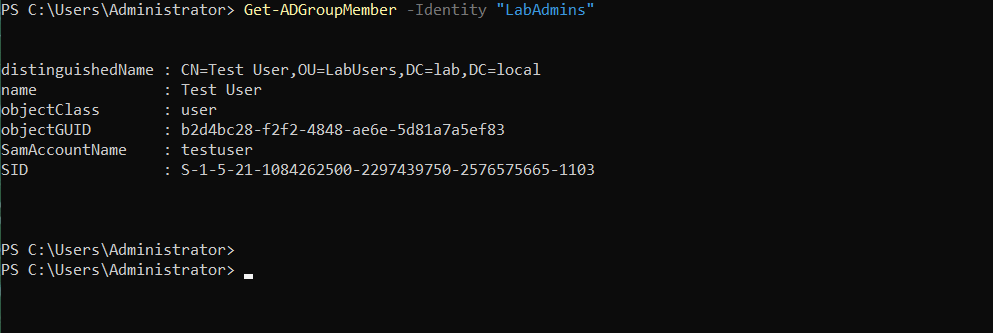
This mirrors how real organizations manage access — grant permissions to a group once, then add or remove members as people join, change roles, or leave, rather than touching individual ACLs every time.
2. Structuring the Directory with Organizational Units
A flat directory doesn’t scale. To reflect how a real organization would segment its resources, I expanded the initial OU structure to separate user accounts, computers, and groups:

New-ADOrganizationalUnit -Name "LabComputers" -Path "DC=lab,DC=local"New-ADOrganizationalUnit -Name "LabGroups" -Path "DC=lab,DC=local"
[Screenshot: OU structure]

Add-ADGroupMember -Identity "LabAdmins" -Members testuser
Separating OUs this way isn’t just cosmetic — it’s what makes Group Policy scoping and delegated administration practical. Policies and permissions can be targeted at a specific container (like all computers in a specific department) instead of applying blanket rules across the entire domain.
3. Enforcing Policy with a Group Policy Object
To see policy enforcement in action, I created a Group Policy Object and linked it to the LabUsers OU — entirely through PowerShell, since Server Core doesn’t ship with the GUI tools:
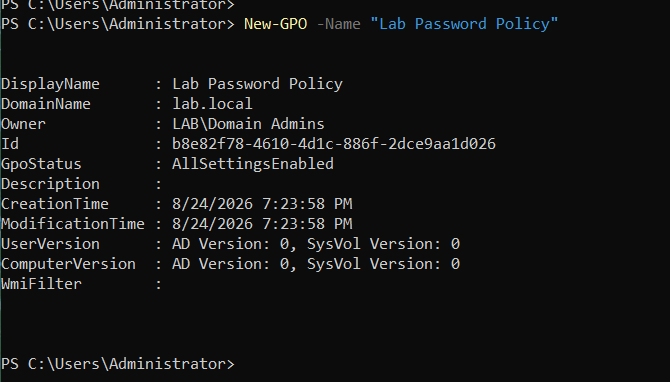
New-GPO -Name "Lab Password Policy"New-GPLink -Name "Lab Password Policy" -Target "OU=LabUsers,DC=lab,DC=local"
For a policy that’s easy to verify visually, I configured a legal notice banner that displays before any domain-joined machine in that OU reaches the login screen:

Set-GPRegistryValue -Name "Lab Password Policy" -Key "HKLM\SOFTWARE\Microsoft\Windows\CurrentVersion\Policies\System" -ValueName "legalnoticetext" -Type String -Value "Authorized users only. Activity is monitored."Set-GPRegistryValue -Name "Lab Password Policy" -Key "HKLM\SOFTWARE\Microsoft\Windows\CurrentVersion\Policies\System" -ValueName "legalnoticecaption" -Type String -Value "Security Notice"
[Screenshot: GPO creation and link confirmation]
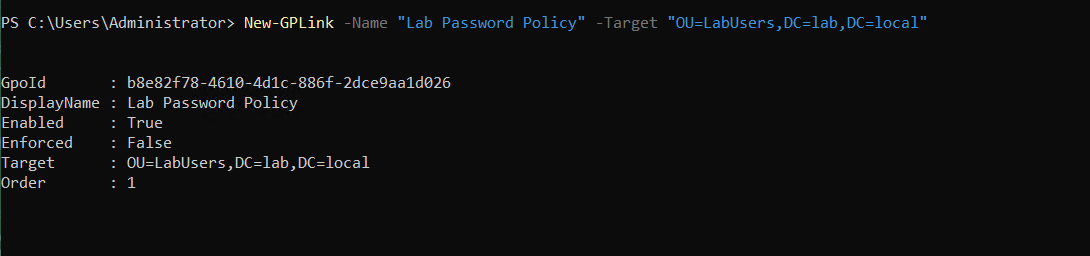
This GPO writes directly to the registry key that controls Windows’ pre-logon interactive banner, demonstrating how Group Policy pushes configuration out to every machine in scope — the same mechanism used in production environments to enforce security banners, password requirements, and countless other settings across thousands of endpoints.
What This Demonstrates
— Provisioning and administering a Windows Server domain controller from the command line only, without a GUI
— Designing a directory structure (OUs) that reflects organizational boundaries
— Managing access through group-based permissions rather than per-user configuration
— Authoring and linking Group Policy Objects to enforce settings domain-wide
— Comfort troubleshooting real infrastructure issues (file permissions, network configuration, PowerShell module state) encountered while building the environment
Next Steps
Future iterations of this lab will include joining a Windows client VM to the domain to validate policy application end-to-end, and expanding the GPO set to cover password complexity requirements and account lockout policies.


Leave a Reply